Describe it in plain words, and it’s built.
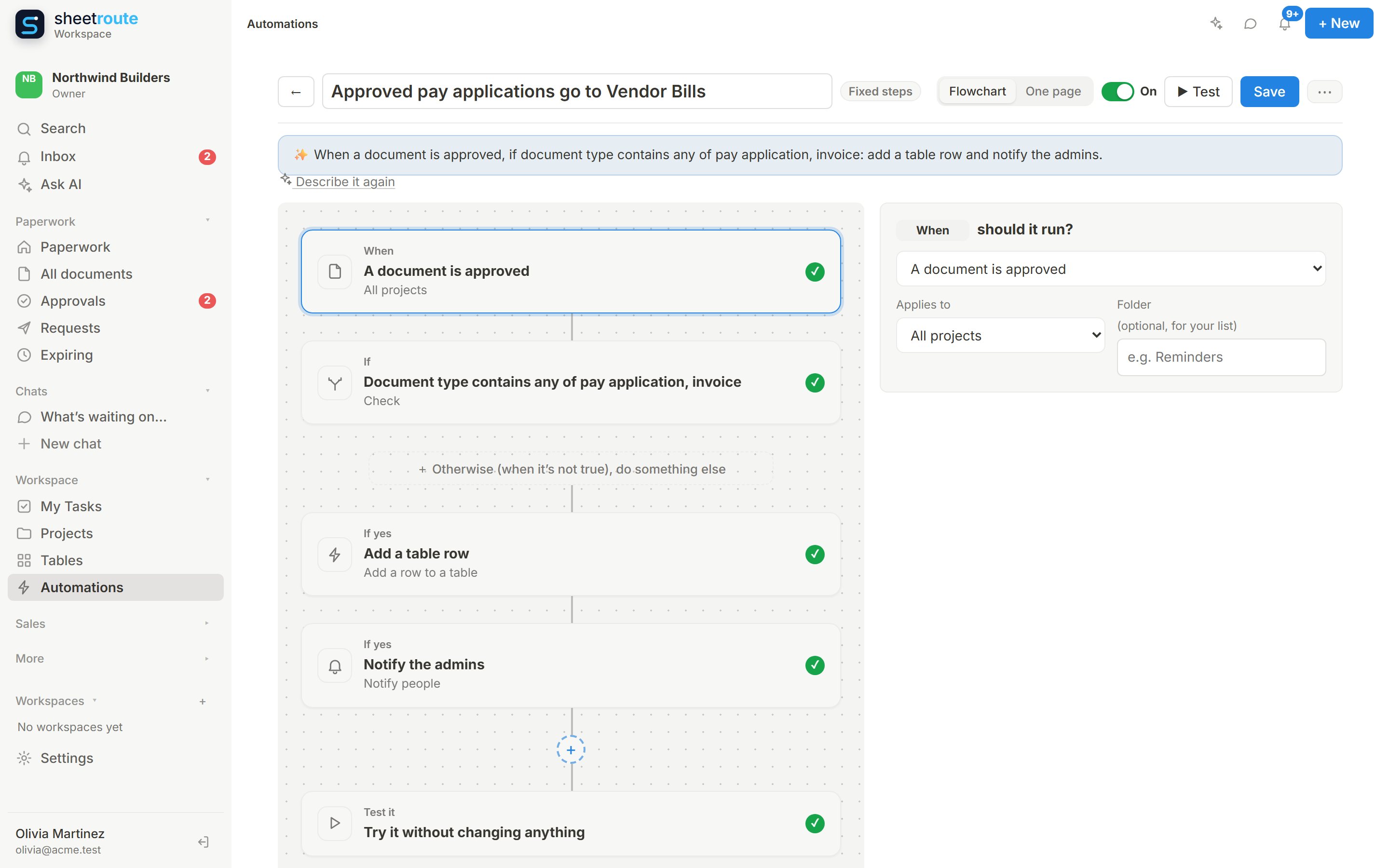
Type “when a pay application is approved, add it to Vendor Bills and tell the admins”. SheetRoute sets up the trigger, the check and each step, and fills in the details from the document. Test it on a real item, then turn it on.
No credit card · Sign in with Google or Microsoft
Fixed steps when it’s always the same. AI when it needs judgement.
Fixed steps: free
Always do the same thing: notify the project manager, create a task, file the document, add a table row. No AI cost, no surprises.
AI steps: a few cents a run
Read, decide and write: reply to a message, draft an email, pick the right person, summarize a week. They ask you first unless you choose “acts on its own”.
Tested before they run
Try any automation on a recent real task, document or row. You see whether it would run, why, and what each step would do, and nothing changes.
Start from what happens in your business
Documents
Uploaded, new version, approved or rejected, approval overdue, expiring or expired, due for review, or sensitive data found.
Projects and tasks
A task is created, assigned, moved, completed, overdue or due tomorrow; a comment is added; a project’s status changes.
Tables
A row is added (also from your public form), a row changes, or a date in a row is today.
Sales and messages (AI)
A new lead, a won deal, an email to your automations address, a Facebook message, comment, post or review, an Instagram comment or message.
On a schedule (AI)
Every day, weekdays, Mondays, Fridays, monthly or the last day of the month, at the hour you pick.
Chained
When you run it, when another automation finishes, or as the AI step inside a fixed automation.
Conditions you can read, and a No path
Check the document type, the amount, the project, a column in a table row, or let AI decide a yes/no question like “is this an urgent repair?”. Do one thing when it’s true and something else when it isn’t.
- A flowchart or one-page view, your choice
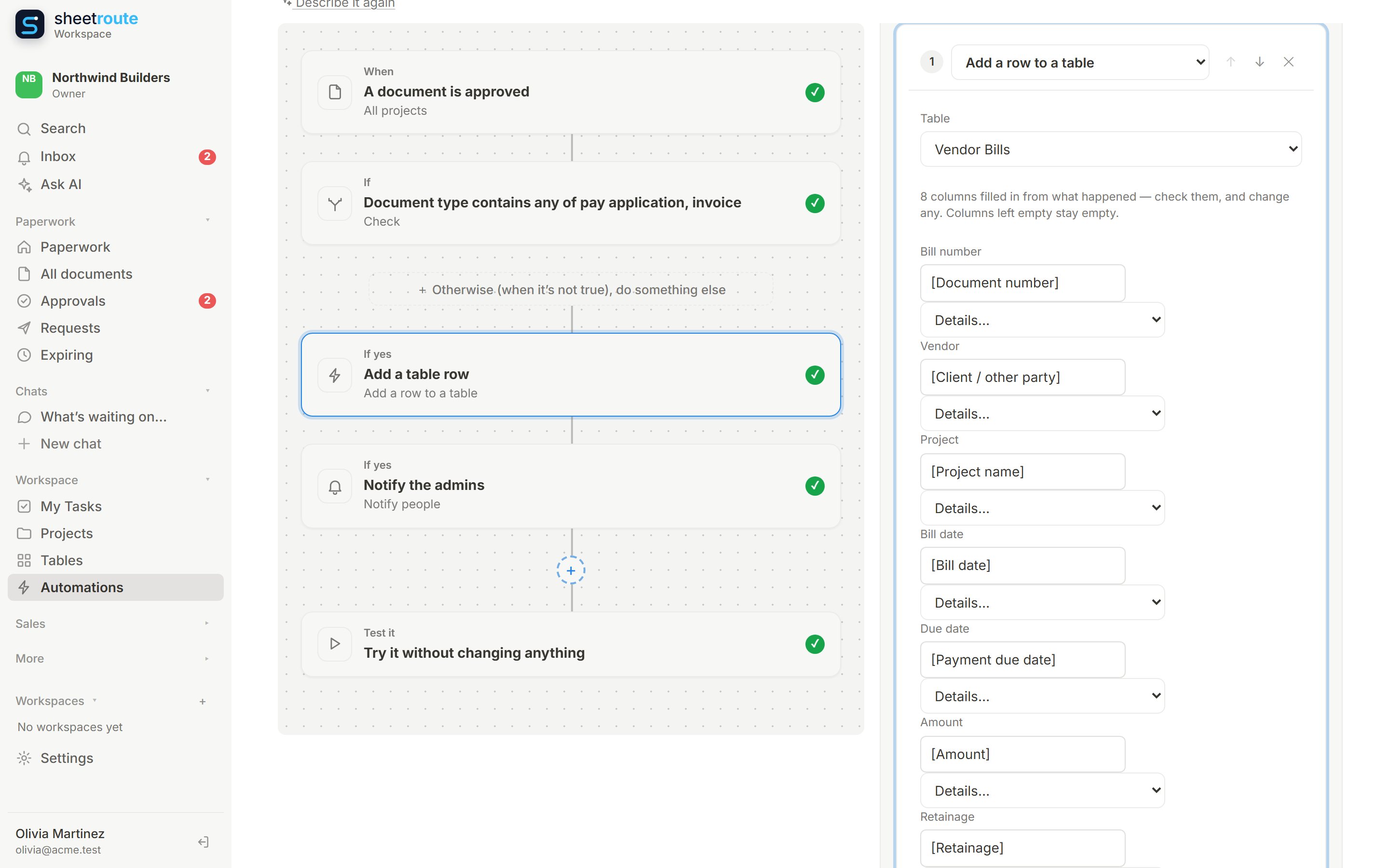
- Details insert as plain words: [Amount], [Client / other party], [Payment due date]
- Columns of a table step fill in automatically from the matching details
Every automation, and everything it did
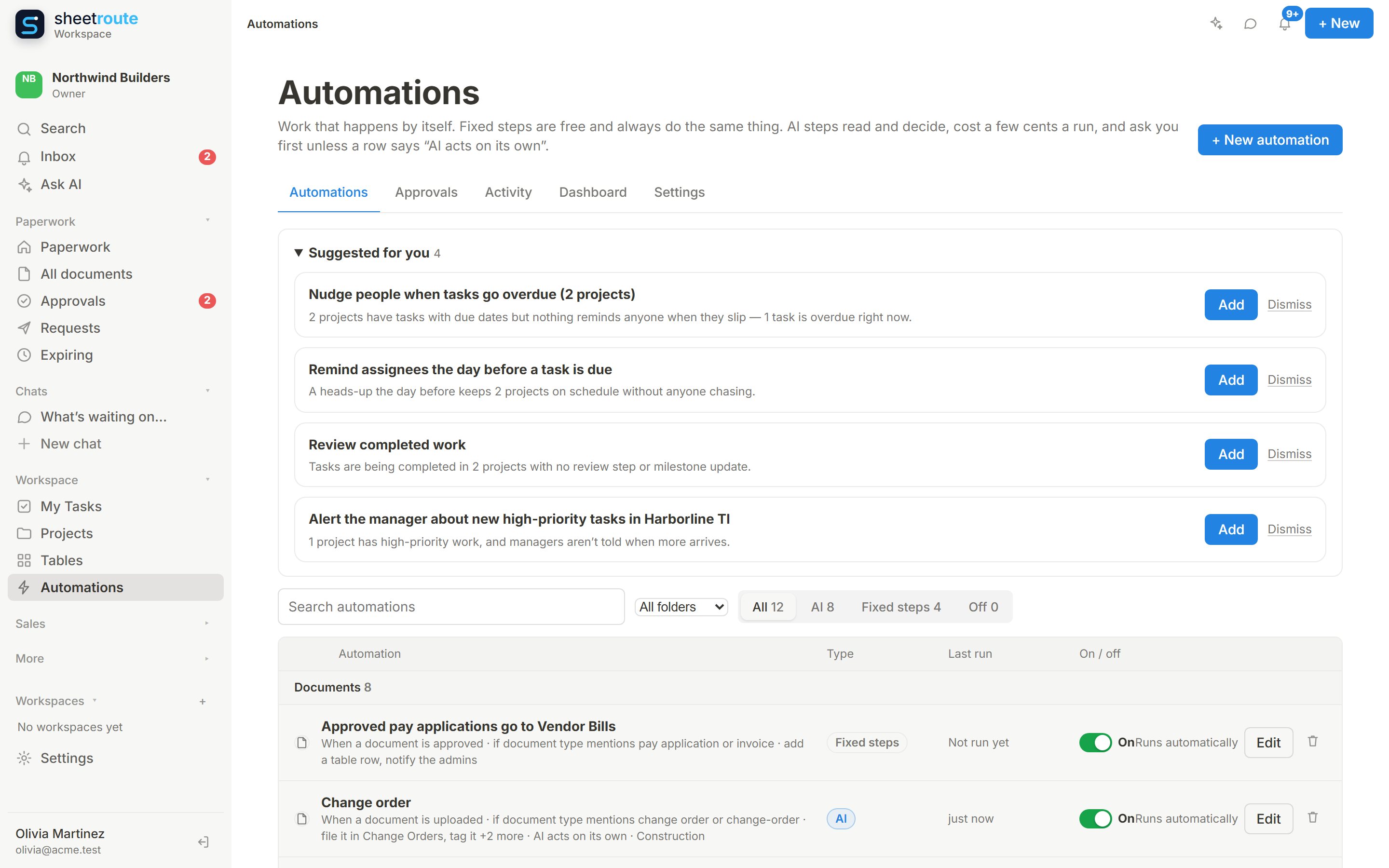
Fixed and AI automations in one list, grouped by what starts them, with when each last ran. Approvals waiting for you, a history of every run and step, and suggestions for what you’re missing based on your own projects and documents.
- Turn on, test, edit or delete from the list
- Suggestions from your real work: overdue nudges, reviews, expiry warnings
- Monthly AI spending cap per automation
Steps that do the follow-up
Tell people
Notify the project manager, the assignee, whoever did it, the admins, reviewers or anyone on the team, in the app and by email.
Tasks and projects
Create or update tasks, change a project’s status, complete a milestone, add a comment, or create follow-up tasks from what a document says.
Documents
File into folders (per client if you like), tag, make confidential, or send for approval in order or all at once.
Tables
Add a row to any table, or update the row that started the automation.
Email and social (AI)
Reply to Facebook and Instagram messages and comments, hide spam comments, publish posts, send or draft emails, log notes on contacts.
Let AI handle it
Give AI the job in a sentence and the tools it may use: CRM, projects, documents, tables, the web. It asks first by default.
Safe by default
Asks before acting
AI steps wait for your OK before sending or changing anything, unless you choose otherwise for that automation.
Messages are information, not orders
An email or comment can’t take control of an automation: what people write is treated as content to read.
Every run recorded
Each run shows what started it, the decision and every step, so you can see exactly what happened.
Paperwork in. Work done.
Free and Starter include 5 and 20 automations; Business 100; Operations unlimited. Start free for 14 days, no credit card.