Run your business, not your paperwork.
SheetRoute reads your documents, updates your records, and handles the follow-up, so your team can focus on the work that matters.
No credit card · Sign in with Google or Microsoft · You’re in within a minute
- Filed in Pay Applications and added to the pay app log
- ⚠ Flagged: billed $7,000 over the contract (lighting at 140%)
- Approval blocked, with every reason listed: insurance, W-9, and this payment’s lien waiver
- Upload link sent to Apex, no account needed
- Tasks in Projects: verify quantities, process payment
- Payment due date added to the project’s key dates
Stop retyping. Start running your business.
Every business drowns in paperwork: contracts, invoices, forms and emails. Someone has to read them, type the details into a spreadsheet, chase what’s missing and remind people what’s due. Small teams lose hours to it every week.
Upload a document or forward an email. AI reads it, pulls out the details, adds them to your tables, and creates the tasks, reminders and approvals that should follow. Anything important waits for your OK.
One app for your CRM, projects, documents and tables, with nothing to set up. Describe what you want in plain words, like “when a pay application is approved, add it to Vendor Bills”, and it’s built.
Three things it does for you
It reads your documents
Contracts, invoices, forms and emails become organized data automatically: who, how much, which dates, what’s missing. No more retyping into spreadsheets.
It does the follow-up
Tasks, reminders, approvals and messages are created for you. It asks first before changing anything important, and you can test any automation before it runs.
Everything stays connected
Customers, projects, documents and your own custom tables live in one app instead of five. From inquiry to invoice, without the busywork.
Describe it in plain words, and it’s built
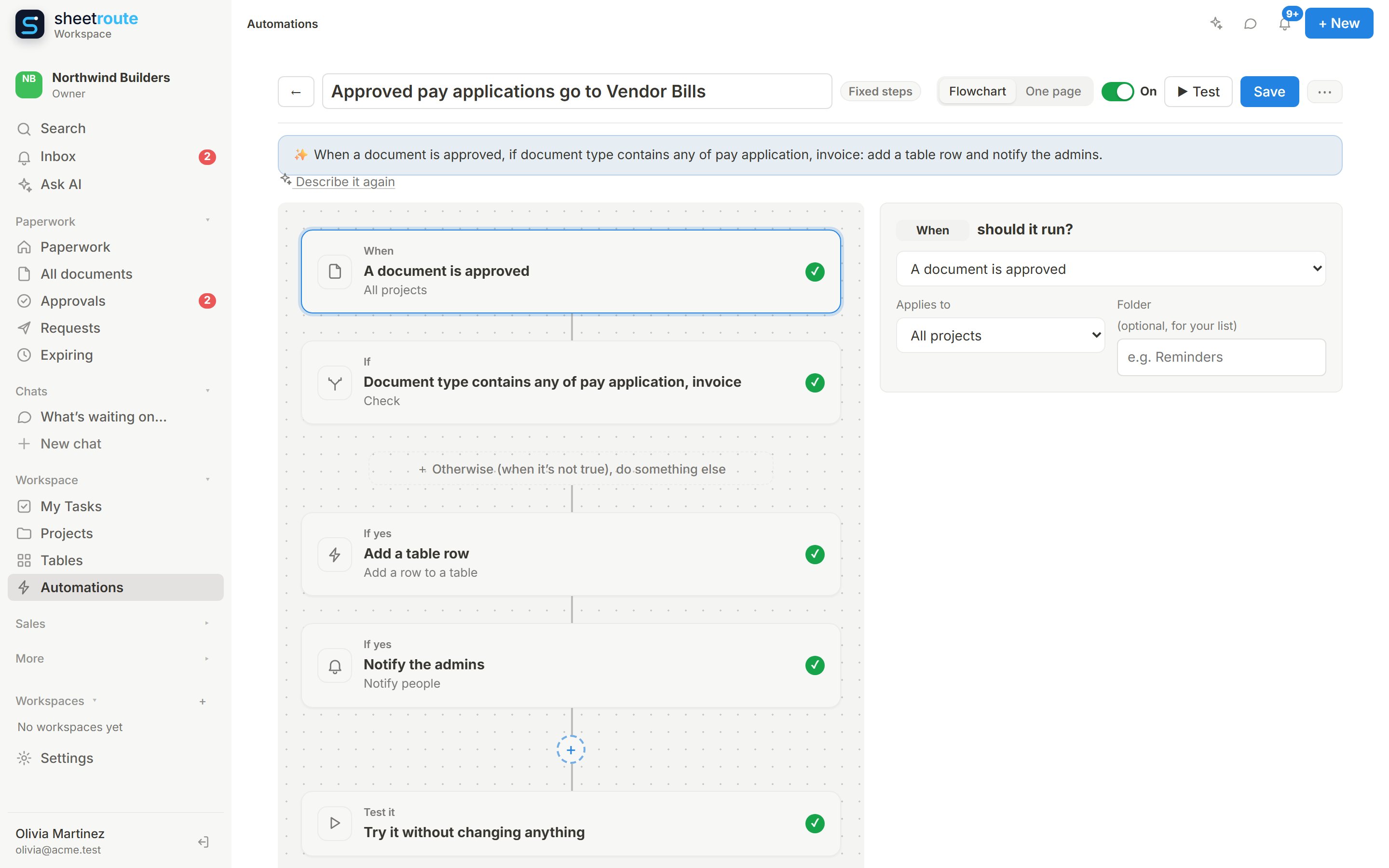
Type “when a pay application is approved, add it to Vendor Bills and tell the admins”. SheetRoute sets up the trigger, the check and each step, and fills in the columns from the document.
- Fixed steps are free and always do the same thing
- AI steps read and decide, and ask you first
- Test it on a real document before you turn it on
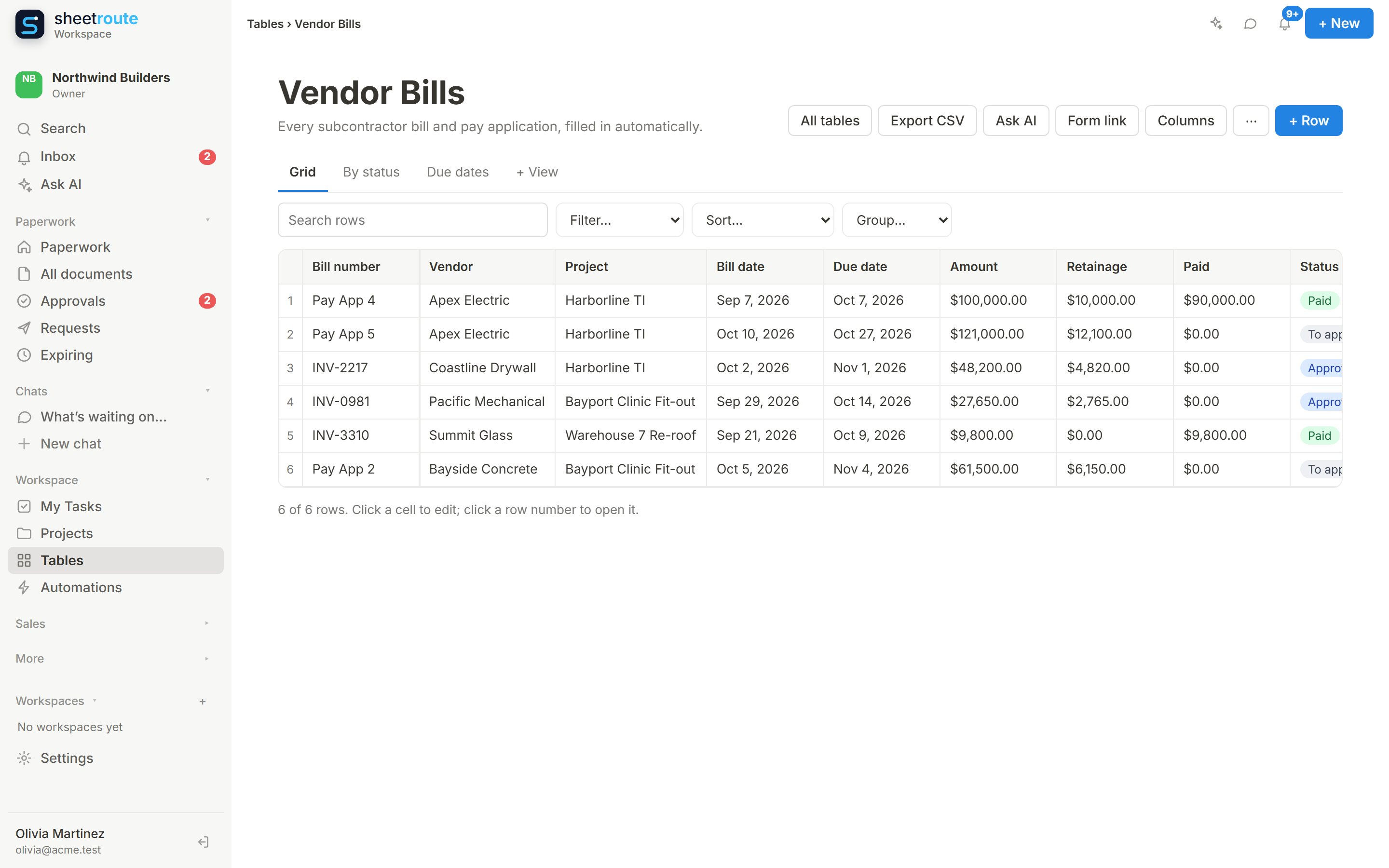
Your own tables, filled in for you
Vendor bills, units, equipment, inventory: create a table from a template, a spreadsheet or a sentence. Documents and emails fill it in, and formulas keep balances and days-until-due up to date.
- Grid, board and calendar views
- Change columns by asking AI, with a warning before anything is cleared, and Undo
- A web form so customers can add rows without an account
See it with your own paperwork
The same app, set up with the documents, tables and automations your industry uses.
Construction
Pay applications checked against the contract, change orders and RFIs logged, insurance certificates and lien waivers collected from every sub.
Construction →Property management
Leases read for rent, tenant and end date, renewal reminders before they lapse, and repair requests from email or a web form turned into work orders.
Property management →Professional services
Inquiries become clients and engagements, engagement letters and invoices are read and tracked, and missing client documents are requested for you.
Professional services →Follow one job from first inquiry to final payment
Northwind Builders wins and runs the Harborline TI fit-out. Each step shows which app does the work and what moves to the next one.
A 2-minute walkthrough of the real app with real AI: a lead comes in, the AI agent replies, the deal is won, and the paperwork is read and checked.
Every document tracked from arrival to done
A Workflow tab on every project: where each document is, who it’s waiting on, what it costs, what’s missing, and the logs you used to keep in Excel.
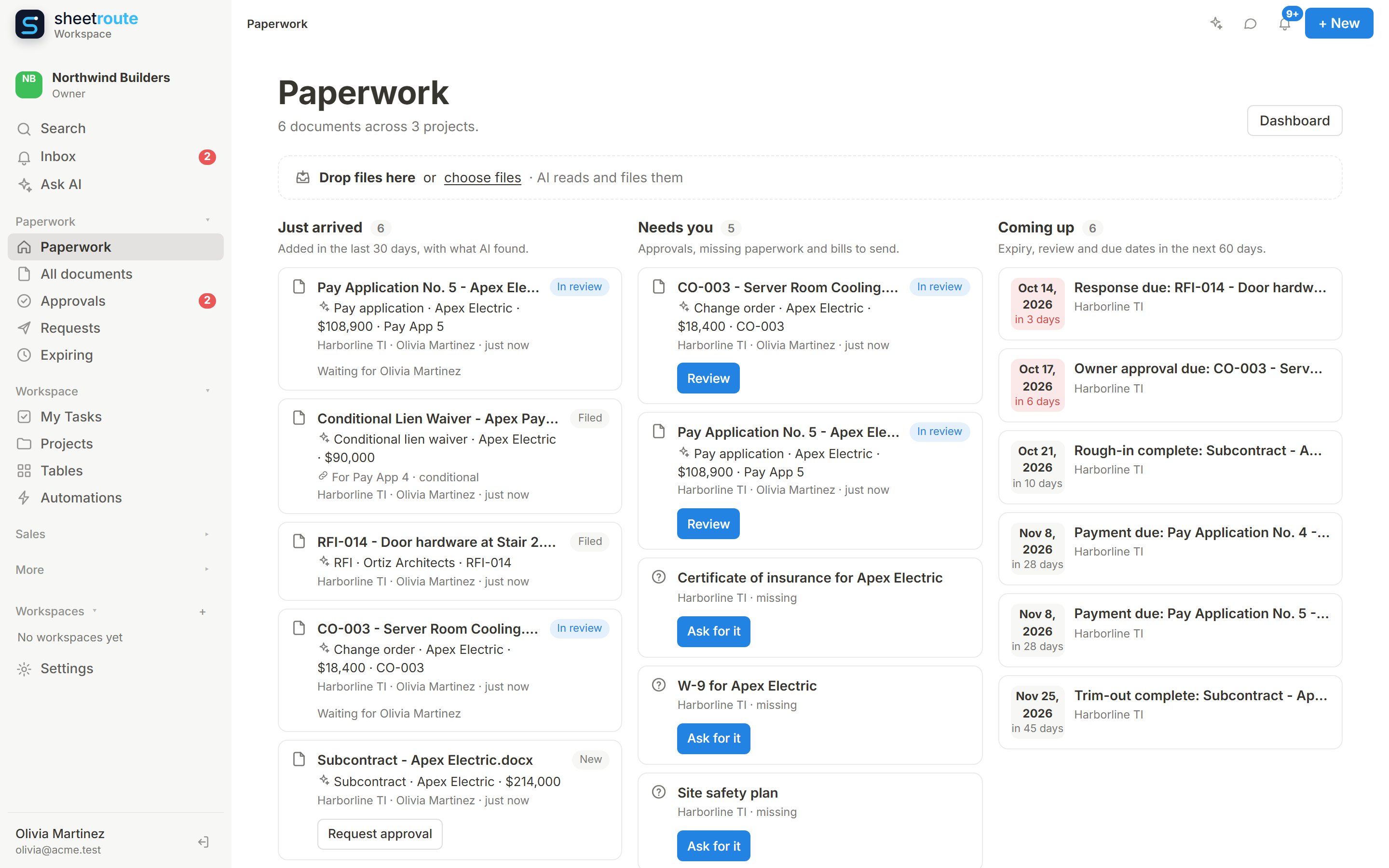
Open the app to what came in and what needs you
Three lanes: Just arrived (with what AI found: type, party, amount), Needs you (approvals, missing or expired paperwork, bills to send) and Coming up (expiry, review and due dates). Each card has its one action.
- Drop files on any page: AI reads each one and suggests where it goes, you confirm
- Ask for a missing certificate or a renewal with one click: it copies an upload link
- Ask AI on the right about any document, with your past chats saved
Connects to Projects: every card opens its document next to the status tracker, the checks and what it caused.
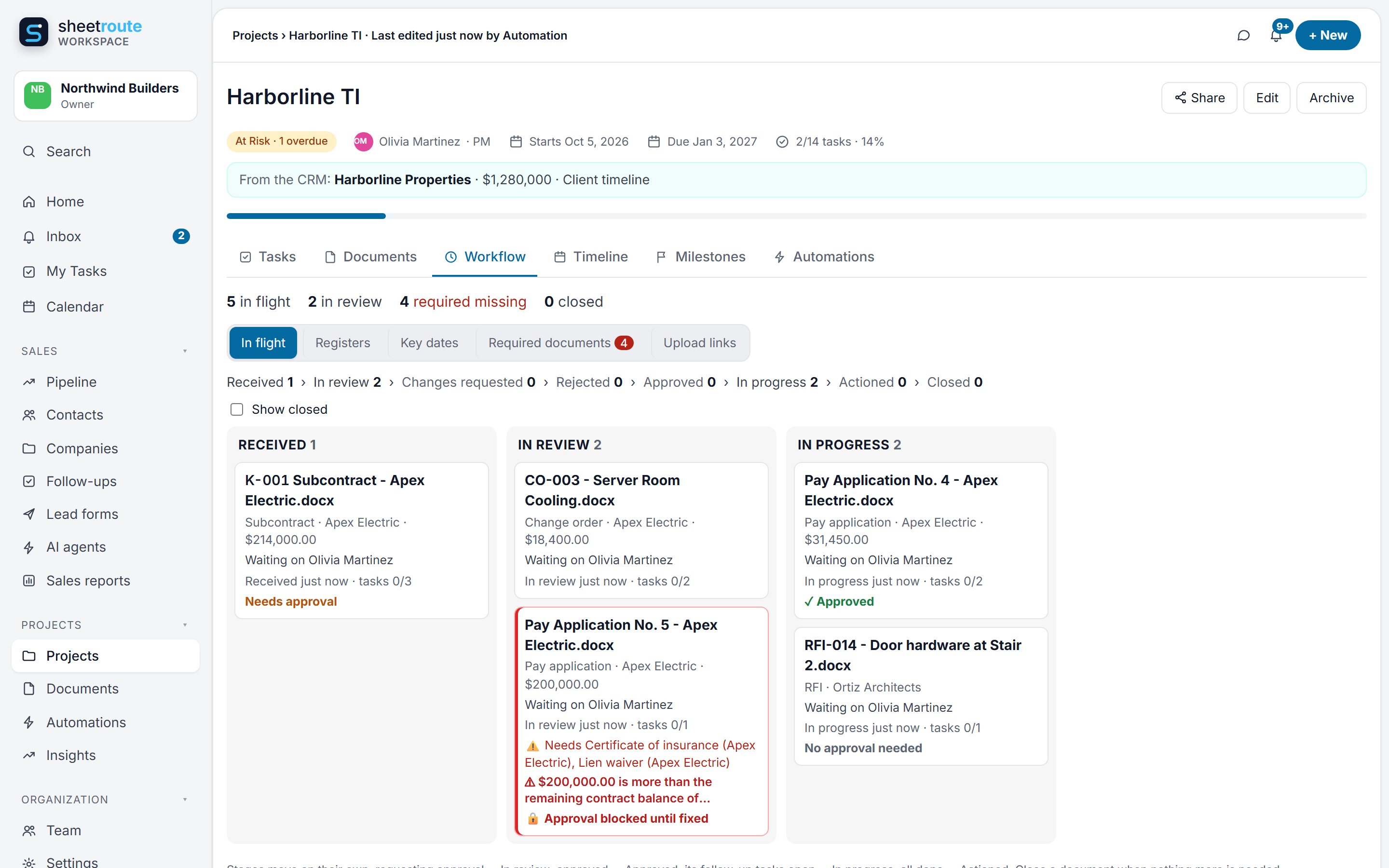
See every document’s stage, and who has it
Received, in review, changes requested, approved, in progress, actioned, closed. Documents move on their own as approvals finish and their follow-up tasks get done.
- Who it’s waiting on, and for how long
- Overdue approvals and tasks flagged
- Answers matched to questions: link the response to RFI-014 and the RFI closes
Connects to Projects: a document moves to “actioned” when its tasks in Projects are done.
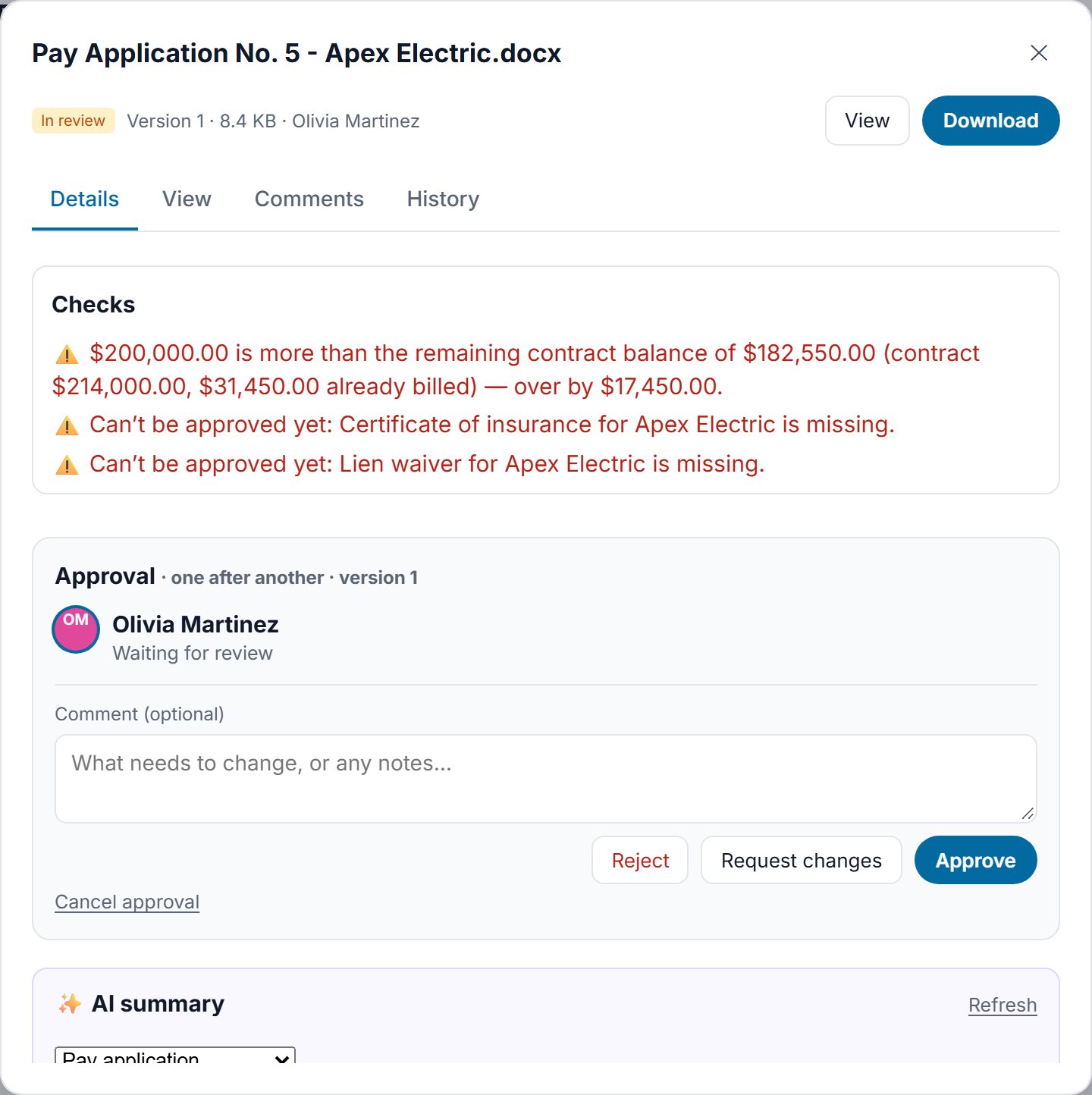
It checks the numbers before you approve
A pay application billed past the contract, a line billed past its scheduled value, a missing lien waiver, a change order that moves the contract sum: flagged on the document, before anyone signs. Approve stays locked until the paperwork is in, and the note says every reason.
- Billed to date vs. the contract sum, with approved change orders
- Lien waivers the way you handle them: a conditional waiver for this payment, an unconditional one for the last
- Approval blocked while insurance, a W-9 or another required document is missing or expired; money problems need a written reason
Connects to Projects: “verify quantities” and “process payment” tasks are created on the Harborline TI project.
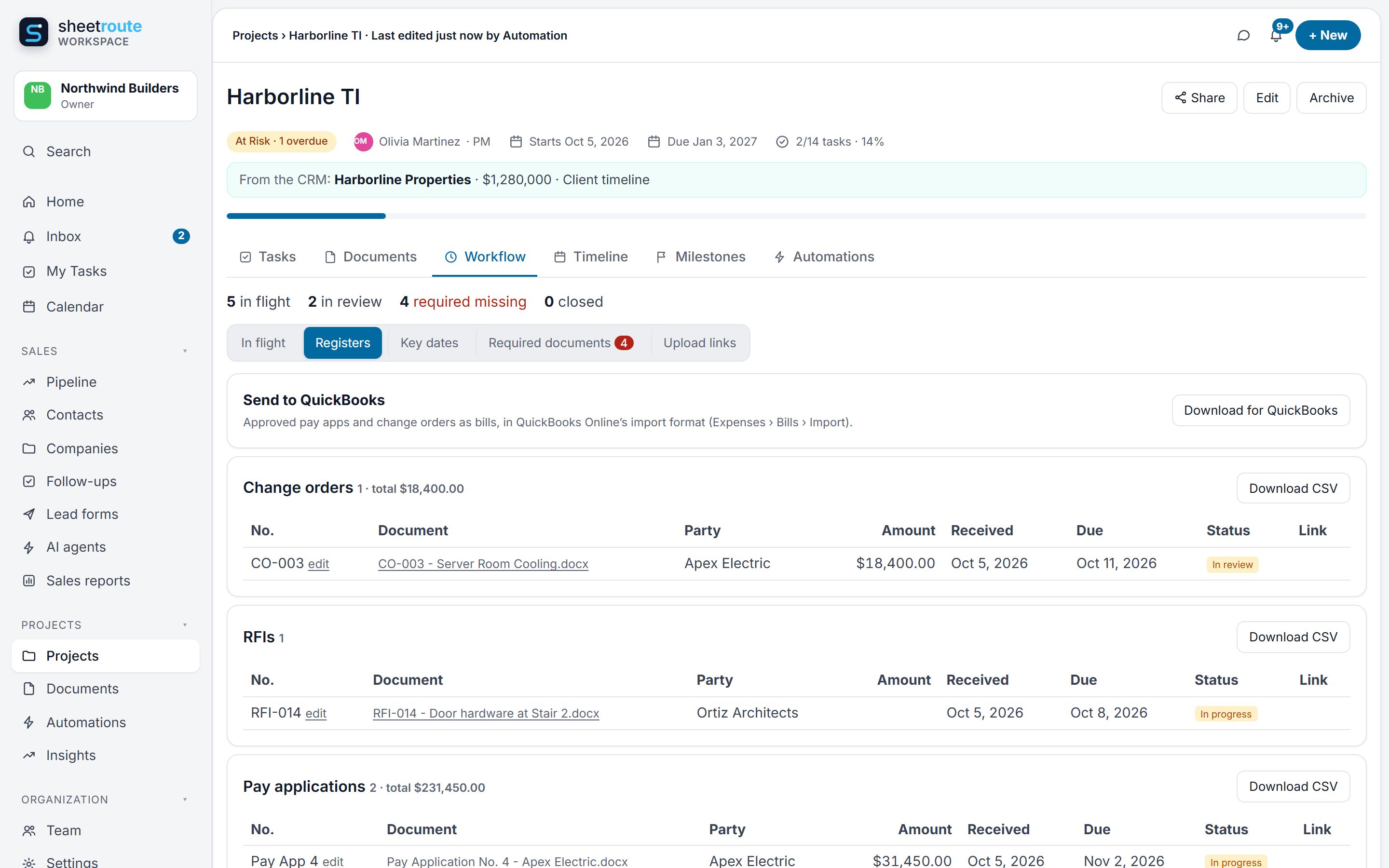
Logs that keep themselves
Change orders, RFIs, submittals, pay applications, lien waivers, notices and contracts: numbered, totaled and linked as documents arrive. Download any log for Excel.
- Uses the document’s own number, or the next one in sequence
- Duplicate numbers flagged
- Amounts, parties, due dates and status in one table
Connects to Projects: each log lives on its project, next to that project’s tasks and deadlines.
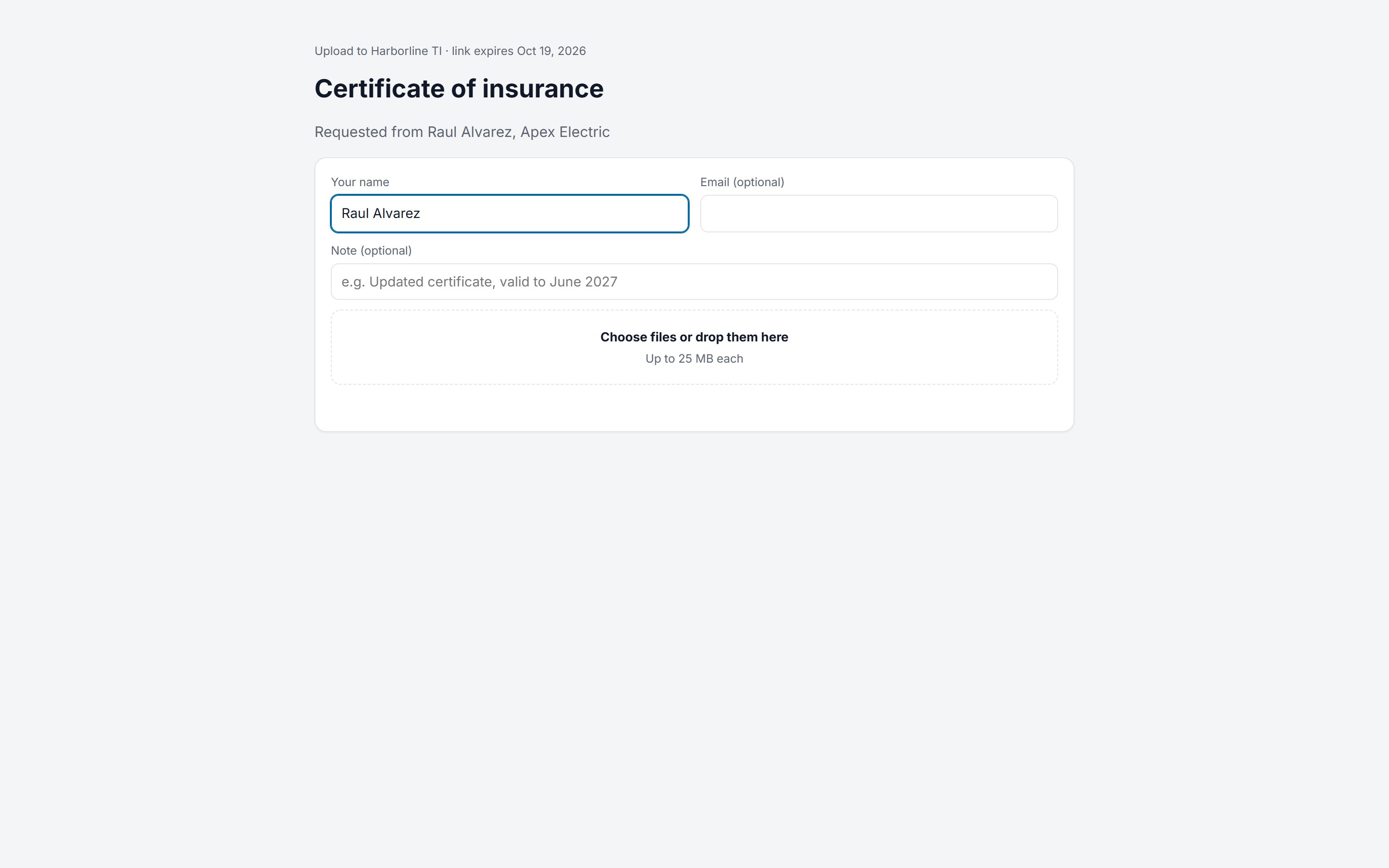
Chase paperwork with a link, not an email thread
Required documents are tracked per subcontractor. When one is missing, send a secure upload link: they upload without an account, and it’s read, filed and checked on arrival. Reviewers outside the company can approve or request changes the same way.
- Required documents per subcontractor: insurance, W-9, lien waivers
- Upload links straight into the right folder
- Outside review links: approve, reject or request changes
Connects to Projects: once Apex’s certificate arrives, the blocked pay app approval and its task move forward.
Key dates from the fine print
Response dates, notice deadlines and payment dates pulled from documents, with reminders 3 days before and on the day, listed on each project’s Workflow tab.
Tasks that cite the clause
Every task created from a document shows the exact phrase it came from, in Projects. One click opens the document.
Workflows in one sentence
“Change orders over $10,000: tell the admins and send them for approval.” Describe it and AI builds the automation for you to check.
AIA G702/G703 checks
Read line by line, tested on real public pay apps: the G702 math, lines billed past their value, unit-price quantities over estimate (civil and municipal work), and packets of several pay apps split in one click.
Signing links
Send a change order or subcontract to sign. They type their name and agree, without an account; the time, IP address and exact file version are recorded.
QuickBooks Online, connected
Approved pay applications and change orders go to QuickBooks as bills, net of retainage, with the PDF attached and the contractor as the vendor. Changes in QuickBooks flow back and can start automations.
Data moves between the apps so you don’t retype it
The hand-offs that save the most retyping. CRM, Projects and Documents live in one app, with one sidebar.
| When this happens | This happens automatically | Apps | Status |
|---|---|---|---|
| A lead fills in your website form | Contact, deal and a “reply today” task, assigned to the right person | CRM | Live |
| A deal is marked Won | A project is created with the client, owner and value, linked back to the deal | CRMProjects | Live |
| A contract is uploaded to a project | Key dates, obligations and contract sum extracted; tasks created that cite the clause | DocumentsProjects | Live |
| A pay application arrives | Checked against the contract balance; approval blocked if required documents are missing; follow-up tasks created | DocumentsProjects | Live |
| A project is finished (archived) | A note on the client’s timeline, a check-in task in 30 days and a repeat-work deal | ProjectsCRM | Live |
| You ask the Deal coach about a client | It reads the CRM history and looks up their projects and documents | CRMProjectsDocuments | Live |
Start with Documents. Connect everything on Business.
Simple monthly packages for your whole team. Every new organization gets 14 days of Business, free.
Free
- 3 users
- 1 app: CRM, Projects or Documents
- 3 projects, 2 GB
- 5 automations
- Custom tables (with Projects)
- AI: about 50 answers or 100 documents read a month
Starter
- 5 users
- 10 GB storage
- Document management + AI extraction
- Basic workflows (20 automations)
- AI: about 1,000 documents read a month
- 100 scanned pages a month
Business
CRM, Projects and Documents, working together
- 15 users
- 100 GB storage
- Automated document workflows
- Workflow tab: registers, key dates, required documents
- Outside upload & review links
- AI tasks from documents
- Custom tables with AI, forms and formulas
- 100 automations, fixed and AI
- AI automations from email, Facebook and Instagram
- CRM with lead forms
- Approvals + AI assistant
- QuickBooks Online, connected
- AI: about 2,000 documents read a month
- 1,000 scanned pages a month
Operations
CRM, Projects and Documents, working together
- 50 users
- 500 GB storage
- Unlimited automations
- AI: about 5,000 documents read a month, plus premium AI
- 5,000 scanned pages a month
- Full audit history
Enterprise
- Custom users and limits
- All apps and industry packs
- Priority support and SLA
What if we use more than our plan includes?
No surprise bills. Admins get a heads-up when 80% of the month’s AI allowance is used. If it runs out, or the scanned pages do, those two features pause until the next month or until you move up a plan; everything else keeps working. A pay application with its full continuation sheet counts as about three documents; an AI answer as less than one. Need more users or storage? Upgrade any time, or ask us for a custom limit.
On the roadmap
Not available yet. Tell us which one matters most to you.
Questions, answered
What does SheetRoute do?
It handles your paperwork. Upload a document or forward an email, and AI reads it, pulls out the details, adds them to your records and tables, and creates the tasks, reminders and approvals that should follow. Anything important waits for your OK. Your CRM, projects, documents and tables stay connected in one app.
How do the three apps work together?
They’re one app with one sidebar, one team and one sign-in. A won deal creates its project, linked to the client and the deal’s proposal documents. Tasks, key dates and required documents come straight from your contracts. The client’s CRM page lists their projects, and finishing a project puts a check-in and a repeat-work deal in your pipeline.
Do I have to use all three apps?
No. Starter is Documents only. Business and above include CRM, Projects and Documents, so you can start with documents and switch on the rest when you’re ready.
Do I have to set up workflows myself?
No. Start from ready-made templates (contracts, approvals, expiring documents, change orders, RFIs…) and SheetRoute suggests the ones you’re missing based on your own projects and documents. You can adjust any of them in plain language.
Can subcontractors or clients send and review documents?
Yes, without an account. Send an upload link and they upload straight into the project folder you choose; the document is read, filed and checked like any other. Review links let someone outside your company approve, reject or request changes, and every step is recorded in the document’s history.
What does it check before I approve?
For a pay application: the G702 math, every continuation-sheet line against its scheduled value, the total billed to date against the contract sum (with approved change orders), and unit-price quantities against the estimate on civil and municipal work. For lien waivers: a conditional waiver for this payment and an unconditional one for the previous payment. And the documents you require on file, like insurance and a W-9. Approve stays locked until required paperwork is in, and the note lists every reason; money problems can be approved with a written reason that’s saved in the history. If part of a scanned or long form couldn’t be read, it says so instead of guessing.
Do AI automations change things on their own?
Only if you let them. Fixed-step automations always do the same thing. AI steps ask you first by default: every message or change waits in Approvals until someone OKs it, unless you choose “acts on its own” for that automation. Every run and step is recorded, and you can test any automation first without changing anything.
Can I make my own tables?
Yes. Admins and project managers create tables from a template, a CSV or Excel file, or a sentence describing what to track. Choose from 17 column types including money, dates, choices, CRM contacts, formulas and links between tables, with grid, board and calendar views and a public form. Automations and AI fill them in from documents and emails, and AI can change a table for you, with a warning before anything is cleared and Undo after.
What can start an automation?
Documents (uploaded, approved, rejected, expiring…), tasks and projects, table rows (added, changed, a date that’s today), and for AI automations: new leads, won deals, emails to your organization’s automations address, Facebook and Instagram messages, comments and reviews, a schedule, or another automation finishing.
Is there a free plan?
Yes, free for up to 3 users. New organizations also get a 14-day trial of the Business plan.
Is my data used to train AI?
No. AI runs on Amazon Bedrock, which doesn’t use your data to train models. Each organization’s data is kept separate, and admins can switch AI features on or off.
Can it read scanned documents?
Yes. Scanned PDFs and photos are read with OCR, so they’re searchable and AI can extract information from them. Monthly page limits depend on your plan.
How do people sign in?
With their Google or Microsoft account (work, school or personal). You create your organization yourself in a minute; everyone else gets in only when an admin of your organization invites them.
Tell us what slows your team down
Pay apps piling up, leads slipping through, or no clear view of where each project stands? Send a few lines and we’ll reply within one business day with how SheetRoute would handle it.
Or email hello@sheetroute.com.
Run your business, not your paperwork.
Start free for 14 days: sign in with Google or Microsoft and name your organization. No credit card, and you’re in within a minute.